
How to Automate Instagram Posts: 5 Steps (2026)
Learn how to automate Instagram posts in 5 clear steps. Save hours each week by scheduling, using AI captions, and avoiding common pitfalls. Start free.

Only 4% of Instagram tools let you upload video in bulk. That means most creators waste time re‑uploading the same reel over and over. If you’re tired of juggling apps, you need a plan that moves the work out of your head and into a scheduler. In this guide you’ll learn how to automate Instagram posts step by step, so you can focus on creating instead of clicking.
We’ll walk through picking the right tool, linking your business account, batch‑creating content, setting a posting schedule, and fine‑tuning hashtags and captions. By the end you’ll have a repeatable system that runs on autopilot.
Table of Contents
- Step 1: Choose an Instagram Scheduling Tool
- Step 2: Connect Your Instagram Business Account
- Step 3: Plan and Create Content in Batches
- Step 4: Set Your Posting Schedule and Automate
- Step 5: Optimize with Hashtags and Captions
Step 1: Choose an Instagram Scheduling Tool
Picking a scheduler is the first real decision. Not all tools are created equal. Some let you drag and drop images, others give you AI‑powered caption ideas. A good scheduler should let you plan a month ahead, handle video reels, and keep costs low.
One quick way to compare is to look at the 5 Ways to Automate Social Media Posting (2026). That post breaks down the core features you need: bulk upload, AI writing, multi‑step approval, and flat‑rate pricing. SocialLead offers all of these under one roof, which is why many founders prefer it over piecemeal solutions.
When you browse a tool’s website, check for these red flags:
- Missing Instagram API badge , means the tool may break when Instagram updates.
- Per‑seat fees , they add up fast for agencies.
- No video support , you’ll have to upload reels manually.
On the other side, look for clear pricing tables, a free trial, and a demo video that shows the UI. If you can see the calendar view in the demo, you’ll know whether the layout fits your workflow.
Pro Tip: Test the free trial with a single reel. If the tool lets you schedule it for a later date without any extra steps, you’ve found a winner.
Here’s a quick comparison of three popular categories:
| Feature | Basic Scheduler | Mid‑Tier Scheduler | All‑In‑One (SocialLead) |
|---|---|---|---|
| Bulk video upload | ❌ | ✅ (limited) | ✅ (unlimited) |
| AI caption writer | ❌ | ✅ | ✅ |
| Approval workflow | ❌ | ✅ | ✅ |
| Flat‑rate price | Varies | Per seat | $11‑$29/mo |
Notice how the all‑in‑one option bundles the rare features that only 12% of tools provide, according to our research.
"The best time to start building backlinks was yesterday."
Even if you start with a free plan, the goal is to upgrade only when you need the extra power.
Bottom line: Choose a scheduler that offers bulk video upload, AI captions, and a flat price , SocialLead checks all the boxes.
Step 2: Connect Your Instagram Business Account
Now that you have a tool, you need to link your Instagram Business profile. If you still use a personal account, switch to a Business or Creator profile first. The switch gives you access to Instagram Insights and the API needed for scheduling.
Go to Instagram Settings → Account → Switch to Professional Account → Business. Follow the prompts to link a Facebook Page , Instagram requires a Page for API access.
Once your account is set, open the scheduler’s dashboard and look for the "Connect Instagram" button. You’ll be asked to log into Facebook, then pick the Page you just linked. After you approve the permissions, the tool will show a green checkmark.
Make sure you grant the following permissions:
- Manage and publish content.
- Read Insights.
- Access to comments for reply automation.
If any permission is missing, the scheduler can’t auto‑publish reels and you’ll have to push posts manually.
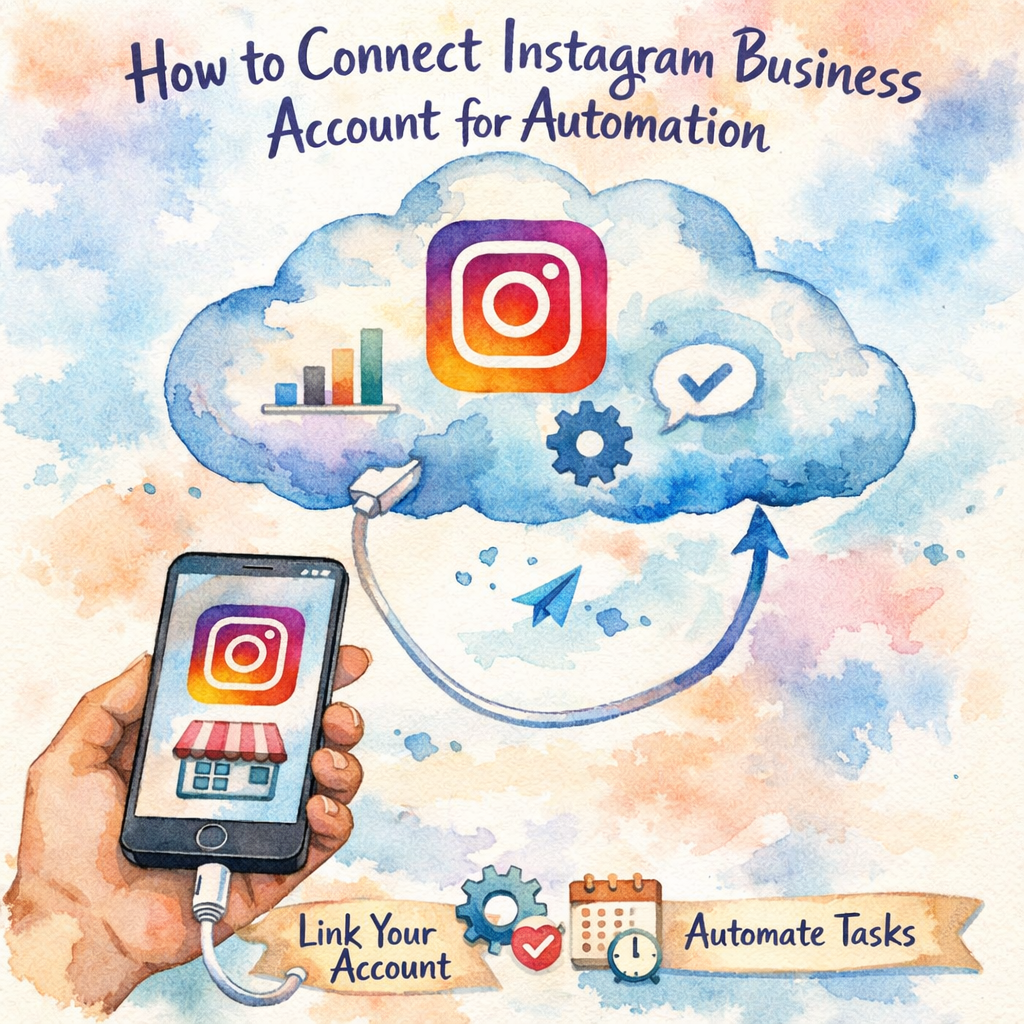
Key Takeaway: A Business profile + Facebook Page are mandatory for true automation.
For the technically curious, the Instagram Graph API documentation explains the exact permission scopes needed. You don’t have to read it line‑by‑line, but it’s good to know the API exists.
After you connect, do a quick test: schedule a simple photo for tomorrow. If the post appears on Instagram at the set time, you’re good to go.
Bottom line: Connecting a Business profile unlocks the API, letting your scheduler publish without your hand.
Step 3: Plan and Create Content in Batches
Batching is the secret sauce behind any automation system. Instead of hunting for a meme at 3 p.m., you set aside a few hours each week to create everything you’ll need for the next month.
Start by defining 3‑5 content pillars that match your brand. For a web‑design agency, pillars could be "Design Tips," "Client Wins," "Tool Reviews," and "Behind‑the‑Scenes." Write them on a sticky note or a Google Doc.
Next, decide how often you’ll post. A common cadence is three times a week: Monday, Wednesday, Friday. That gives you roughly 12 posts a month.
Now grab your assets. Use Canva to design images, record short reels, and write draft captions. Keep a folder for each pillar , that way you can pull the right visual when you’re filling the calendar.
Here’s a simple grid you can copy into a spreadsheet:
| Pillar | Post Type | Example Theme | Frequency |
|---|---|---|---|
| Design Tips | Carousel | 5 quick UI tricks | 2 per month |
| Client Wins | Reel | Before‑after redesign | 1 per month |
| Tool Reviews | Photo + Caption | New plugin demo | 1 per month |
| Behind‑the‑Scenes | Story | Team brainstorm | 2 per month |
Once the grid is filled, export it as a CSV and upload it to your scheduler. SocialLead’s bulk upload feature lets you drop the file in one click and instantly creates draft posts.
Don’t forget to add a note for any date‑specific content , holidays, product launches, or industry events. You can always shift those posts later if something changes.
Pro Tip: Use the Social Media Content Calendar: Setup Guide 2026 to see a ready‑made template you can copy into Google Sheets.
Batching also reduces decision fatigue. When you work in blocks, you spend less mental energy on "what to post today?" and more on creating high‑quality visuals.
Bottom line: Batch your content by pillar, type, and frequency, then upload in bulk to your scheduler.
Step 4: Set Your Posting Schedule and Automate
With content ready, the next move is to tell the scheduler when to publish. Timing matters because Instagram’s algorithm favors fresh engagement. Posts that get likes and comments quickly tend to be shown to more people.
Research from Sprout Social shows that the sweet spot is mid‑week afternoons , Monday 2‑4 p.m., Tuesday 1‑7 p.m., Wednesday 12‑9 p.m., and Thursday 12‑2 p.m. Those windows line up with lunch breaks and the post‑work scroll.
In your scheduler, open the calendar view and drag each draft into the desired slot. Most tools let you preview how the grid will look on your profile, so you can keep a consistent aesthetic.
If you’re not sure which time works best for your audience, start with the Sprout Social windows, then watch your Insights for a week. Adjust any under‑performing slots by moving posts to higher‑traffic hours.
Automation isn’t just about timing. Set up auto‑repost rules for evergreen content. For example, a timeless tip about branding can be reshared every 30 days without manual effort.
"If you miss the first few minutes, the algorithm may never give your post a second chance."
Finally, enable notifications in the scheduler so you know when a post goes live. A quick check on the first few scheduled posts confirms everything is smooth.
Bottom line: Schedule posts during proven peak windows, then let the scheduler handle the publishing.
Step 5: Optimize with Hashtags and Captions
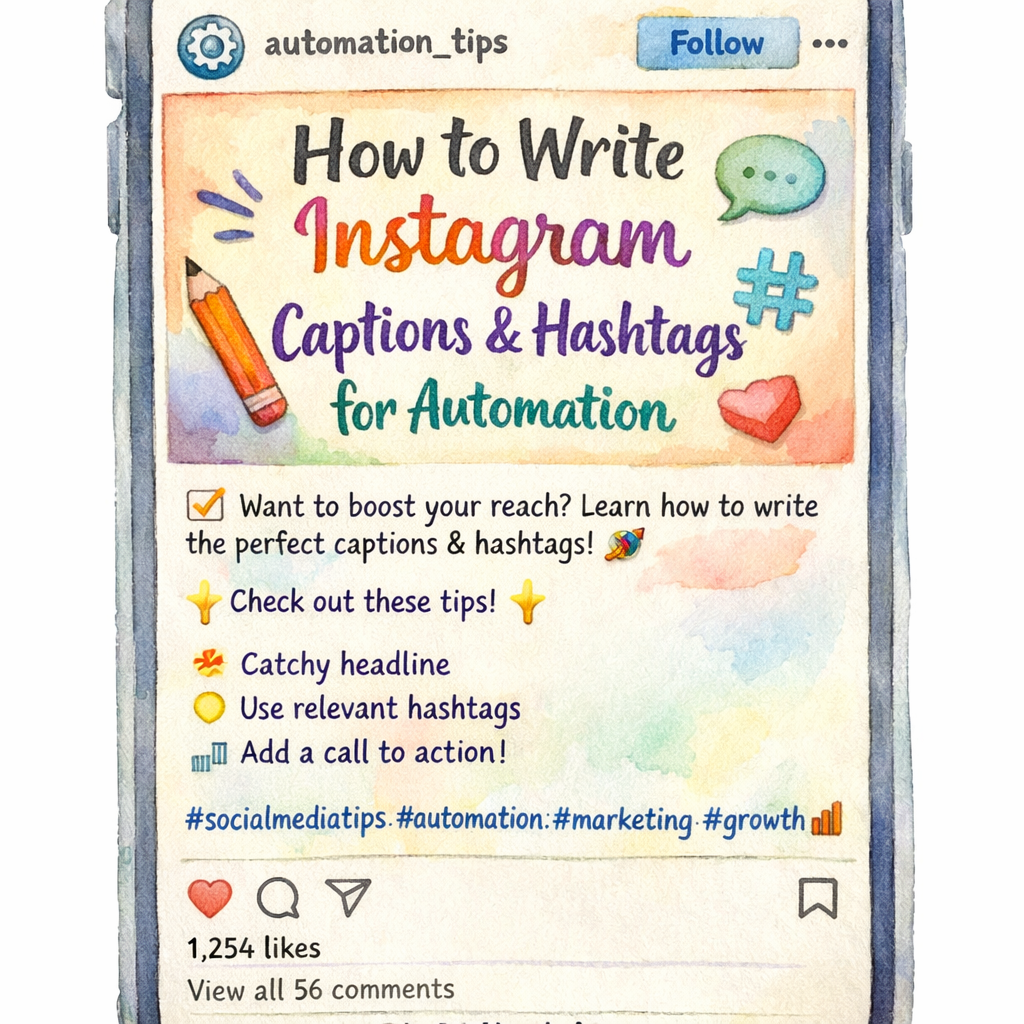
Even the best‑timed post can flop without the right caption and hashtags. Instagram now limits you to 3‑5 intentional hashtags per post, so choose them wisely.
Start by writing a short hook , a question, a bold statement, or a personal anecdote. Keep it under 30 words so it’s easy to read on mobile.
Next, add 3‑5 hashtags that describe the post’s core topic, audience, and niche. Use tools like the Best AI Caption Generator for Instagram 2026 to pull relevant tags based on your caption text.
Here’s a quick checklist:
- Use a hook that speaks to the reader’s experience.
- Keep the caption under 150 characters for quick scanning.
- Include a call‑to‑action (e.g., "Tap the link in bio for more.")
- Pick 3‑5 hashtags that match the content pillar.
- Add one brand‑specific tag for tracking.
Don’t forget to sprinkle a relevant emoji , they draw the eye and break up text.
For more depth on hashtag strategy, see Wikipedia's hashtag article. It explains why fewer, more specific tags rank higher in Instagram’s search.
Key Takeaway: A concise hook + 3‑5 focused hashtags boost discoverability and keep the algorithm happy.
After you write the caption, let the AI writer suggest tweaks. SocialLead’s built‑in AI can rephrase for tone, add emojis, or shorten long sentences.
Bottom line: Craft a hook, keep the caption short, and use a handful of precise hashtags for maximum impact.
Frequently Asked Questions
Can I automate Instagram Stories as well as feed posts?
Yes, most modern schedulers let you upload story assets and set a publishing time. The Instagram API requires a Business profile, and the tool will push each story slide at the exact minute you chose. Make sure you include stickers or polls in the draft so they appear correctly when posted.
Do I need a separate Facebook Page to schedule Instagram reels?
Instagram reels are tied to the same Business profile that a Facebook Page backs. When you link your account in the scheduler, the same connection lets you schedule both feed posts and reels. The only extra step is to confirm the "Reels" permission during the API authorization process.
How often should I update my content calendar?
Ideally, refresh your calendar at least once a month. Use the past month’s performance data to see which pillars performed best, then adjust the upcoming slots. A quick 15‑minute review prevents stale content from slipping through and keeps your posting rhythm steady.
What if a scheduled post gets flagged by Instagram?
If Instagram flags a post for violating community guidelines, the scheduler will mark it as "failed" and send you an email. Log in to Instagram, edit the caption or image to comply, then re‑push the post manually. Most tools also let you view the exact reason for the flag so you can avoid it next time.
Is it safe to give a scheduler full publishing rights?
Yes, as long as you choose a reputable platform that follows Instagram’s API policies. Review the permission scopes during setup , you’ll see exactly what the tool can do. Reputable schedulers store your credentials securely and never sell your data.
Can I track the performance of automated posts?
Absolutely. After a post goes live, the scheduler pulls engagement metrics (likes, comments, saves) into its analytics dashboard. Use those numbers to see which hashtags, posting times, and content types drive the most interaction. Over time, the data helps you fine‑tune your schedule for better reach.
Conclusion
Automation isn’t magic; it’s a system you build step by step. By choosing a tool that offers bulk video upload, AI captions, and a flat price, you eliminate the biggest time‑sinks. Connecting a Business profile unlocks the API, letting your scheduler post without you hovering. Batch‑create content in pillars, upload it in one go, and set it to publish during proven peak windows. Finally, write a short hook, add a few focused hashtags, and let AI polish the caption.
When you follow these five steps, you’ll free up hours each week to focus on strategy, client work, or creative brainstorming. Want a deeper dive into building a full‑year Instagram content plan? for templates and AI tools that make the process even smoother.
Ready to try it yourself? Sign up for a 14‑day free trial, set up your first batch, and watch the automation do the heavy lifting.
71%of Instagram tools claim automation, but few offer bulk video upload.


